Introduction
In today’s digital age, physical media such as DVDs are gradually decreasing and becoming outdated. In the past people relied on them to store movies and personal videos, and important files. However, most of this is now moved to cloud storage, USB devices and online streaming platforms, making access faster and more convenient. So if you have old DVDs that hold your favorite movies, family memories, and important data, it’s time to restore them and convert them, digital files in convert . Doing this is a smart and long-term solution.
Changing DVD content into digital format (like MP4, MKV, AVI, MOV), you can:
- View your video collection any time on the device of your choice
- Files can be kept safe by storing them on the cloud
- Easily share and backup
- Can free up physical storage space
In this professional guide, we will learn step-by-step that. How to convert DNDs, to digital file’s
Which tools are best, and what SEO-friendly tips will help you build a feature-proof digital library.
Step 1: Understand What “DVD to Digital” Conversion Means
DVD to digital conversion means _ Extracting the video and data stored inside a physical DVD disc and converting it into a digital video file saves it in the form of MP4, MKV, on computer and external drive.
Physical DVD: An optical disc on which data is written using a laser.
Digital File: A software readable format that you can easily play on any device.
The conversion process is usually in steps .
- Ripping: Copying the files from a DVD to a digital format, including encrypted discs.
- Encoding: Changing the extracted content into a widely supported digital format like Mp4.
Step 2. Choose the Right Tool for Conversion
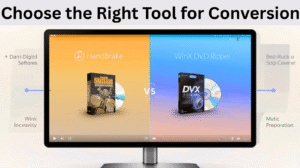
A wide range of DVD ripping software is available today _ some at now cost and others at paid options. Here are some of the most reliable ones.
- Hand Brake – a free and open-source tool
- Best for: Beginners and professionals
- Features: Supports MP4, MKV, subtitle support, device presents
- Compatible with: Windows, macOS, and Linux
- A powerful DVD conversion tool
- Best For: Fast & high-quality conversion
- Features: GPU acceleration, copy-protected DVDs support
- Platform: Windows, macOS
- Make MKV
Best For: Lossless conversion
Features: Quick ripping, retains full quality
Platform: Windows, macOS, and Linux
Tip: If you are just starting out, handbrake is a trusted and cost-free choice.
Step 3: Get your Computer and DVD Ready
Before you begin the conversion process make sure a few essentials are prepared:
- Original DVD disc
- DVD drive (internal it external)
- Sufficient storage space (movie 1-4 GB)
- Installed DVD ripping software
Optional: If your DVD is region-locked use a region-free drive and software
Step 4. Rip and Convert The DVD
Let us now see a complete example using handbrake.
Insert the DVD
Insert the docs into your DVD drive and make sure the system detected it.
Open hand brake
Launch Handbrake, Click “Source” and Select your DVD drive
Select Title & Chapters
Handbrake will scan the titles and chapters within the DVD. Usually the longest title is the main movie.
Choose output Format
“Summary” tan in output container choose do recommended: MP4).
on the “video” tab set the codec, (H.264and H.265) and perfect quality.
Choose Destination & Start
Select the output folder and click, “Start encode” and wait for the conversion to finish.
Done! You now have a digital video file that works on any device.
Advanced options (For Experts)
If you want more control try using these advanced settings.
- Bitrate: Increasing the bitrate improves video quality but it also makes the file size larger
- Resolution: You can upscale the standard DVD resolution (729×480 NTSC / 720×576 PAL) to a higher quality like 1080p.
- Subtitles: You Can add subtitles either directly inside the video and as separate files.
- Audio tracks: It is possible to retain multiple audio tracks
Step 5. Organize & Store Your Digital Files
It’s Important to properly organize your files after the conversion. Some tips.
- Folder structure: movies > Genre > movie name (Year)
- Rename Files: Moviemaker, Year and set Resolution MP4.
- Cloud backup: Backup to google drive, Dropbox, OneDrive
- Media Server: Create a smart streaming setup using plex and jell fin.
Legal Notice
Since copyright laws differ by location, always verify the law guide lines in your area before copying any DVDs. .
- It is legal to convert home: DVDs for personal use.
- It is illegal to distribute/share Commercial DVDs.
Pro Tips and Recommendations
Choose the H.265 (HEVC) codec to significantly reduce file size while maintaining high video quality.
Converting older DVDs to 1080p improves the overall viewing experience.
Tools like Make MKV and WinX can help you process copy-protected DVDs.
Add metadata (poster, cast info) for Plex or jell fin.
Best Use Cases for Digital Files
- Old movie collections of do preserve
- Family memories do backup
- Smart TV / tablet on direct play back
- Remote access via cloud storage
- Business archives store & do organize
Common Issues and Fixes
Issue Possible Reason Quick Fix
DVD not detected Drive issue / Disc Clean Disc, Update Drivers,
Damage
Encrypted DVD error Drm Protection Use Make MKV and WinX
Conversion Slow Old hardware Enable GPU acceleration
Poor quality output Low bitrate /Wrong Re-encode with H.265 and higher
Codec bitrate Future-Proofing your Digital Collection, Long-Term Tips & Strategies
After converting your DVDs to digital files make sure that files are safely stored neatly organized and easy to access in the long run. Without proper management your collection might become cluttered, corrupted and even lost. Follow these essential strategies to future-proof your collection:
- Use Modern and universal File Formats
Although most DVD ripping tools offer several output formats (MP4, MKV, AVI, MOV,) not every format is suitable for long-term storage. Choosing widely supported ones like MP4 (H.264) and HEVC (H.265) ensures your video plays seamlessly on current and future devices without the need for reconversion.
MP4 (H.264):Works smoothly on most streaming devices smartphones, and smart TVs,
MEVC (H.265): Superior compression with excellent quality, ideal for saving storage space.
2. Maintain a Clear Naming and Metadata System
A well-structured digital library is much easier to navigate. Always rename your files in a consistent way, such as.
Movie name-Year-Resolution . MP4
For Example:
Inception-2010-1080p.MP4
Additionally, consider adding metadata _ such as cast information, genre, release date, and poster art _ Using tools like Tiny Media manager and plex metadata scrapers. Proper metadata makes browsing your collection on media servers effortless and visually appealing.
3. Create multiple Backups _ Local and Cloud
A major concern with digital storage is losing data from device failure and accidental selection. To prevent this follow the 3-2-1 backup rule.
- 3 Copies: Keep three versions of your files.
- 2 Locations: Store them on to different types of media (e, g, external hard drive + NAS).
- 1 Offsite: Keep one copy on the cloud (Google drive, Drop box, One drive)
Cloud storage not only keeps your collection safe from local hardware issues but also gives you remote access to your media library anywhere.
4.Use a Media Server for Smart Access
For a big video collection you can create a home media server with tools like plex jellyfin, and Emby. These platforms allow you to.
- Stream videos to any device in your home network.
- Access your library remotely via mobile apps.
- Manage and explore your library with detailed metadata and visual cover art.
A media server turns your video library into a private streaming-style platform similar to Netflix.
5. Monitor Storage health and Refresh Files Periodically
Digital storage devices (HDDs, SSDs, USBs) have a limited lifespan. Over time data can degrade _ a phenomenon known as bit rot. To prevent this:
Check drives every 6-12 months and replace aging hardware proactively.
Migrate your files to newer storage solutions (like NAS and SSD) every 5-7 Years.
Use checksum tools (e,g, QuiskHash) to verify data integrity.
6. Stay update With Future codes & and Formats
Technology evolves quickly and new video codes emerge every few years. While H.264 and H.265 are dominant today, formats like ANI and VVC (H.266) are already gaining traction. Periodically review your collection and consider re-encoding to newer codes for improved efficiency and future compatibility.
Why this Matters:
Without proper planning, your hard work converting DVDs will go to waste due to lost files, outdated formats, and poor organization. By following the strategies above, you’ll ensure that your digital video library remains secure, accessible and enjoyable _ not just today, but for decades to come.
FAQs _ DVD to Digital Conversion
Q: Can I Convert Protected DVDs?
Yes. But only for personal use. Make MKV and WinX help bypass DRM.
Q: What is the best video format?
MP4 (H.264) _ the best compatible. H.265 _ best compression & quality.
Q: Conversion, how long does it take?
Depends on movie length and system speed _ usually 15 min _ 1 hour.
Q: Is the process the same on Mac?
Absolutely. Handbrake, make MKV, and WinX all offer Mac versions.
Also Read
Vanilla Gift Card 16 Digits Code
Does A Venmo Asked For Last 4 Digits Of Phone Number
Digital Gift Cards (Amazon, Google play, etc)
Conclusion
Converting DVDs to digital files is a modern and future-proof solution for storing your movie library, Personal, videos, and archives. Safe portable is easily accessible by choosing the right tool and following best practices, you can give your old DVDs a new digital life without any quality loss.
Whether you are a movie lover and want to preserve your personal memories, now is the time to transform the physical media lying on your shelf into digital format.
Useful Resources (Outbound Links)
- Hand Brake _ Official Free DVD Ripper
- WinX DVD Ripper Platinum _ Premium tool
- Make MKV _ Quick Lossless Converter
- How-To Geek: Is DVD ripping Legal?
- Life wire: Best DVD to digital converters